beginning
1
Manuscript Formatting
Manuscript Formatting
1.01 Plain, Uniform Text
We ask that you submit your manuscript files as plain and uniform text. Nonessential or incorrect formatting will be removed from the manuscript before copyediting begins.
Font and Type Size
1.02 Use Times New Roman Font
Set your entire manuscript in a uniform and readable font: for example, Times New Roman at a point size of 12.
1.03 Special Characters
If any special characters in your manuscript are not available in this font, please alert your editor.
Margins and Alignment
1.04 Margins
Every word processing file in your manuscript should have 1-inch margins on all sides. The header and footer margins should be 1/2 inch on the top and bottom.
1.05 No Running Heads
Do not include running heads (e.g., author name, chapter title, or other descriptor) in the header or footer.
1.06 No Hyphenation or Justification
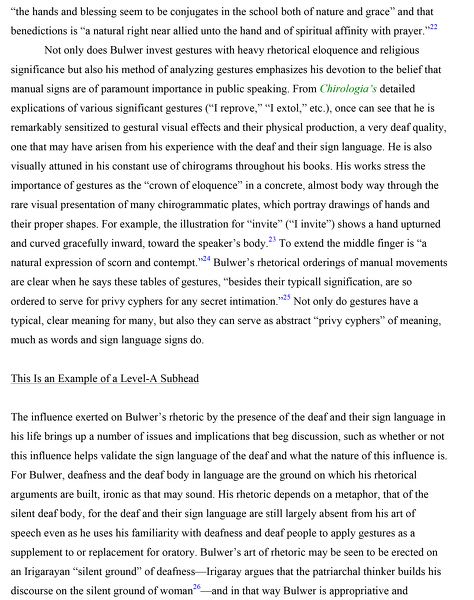
Do not use your word processor’s hyphenation or justification features. Your margins should look just like the margins in Figure 1.1: left side even (left justified or flush left) and right side uneven (ragged right). Do not hyphenate words at the ends of lines. The only words that should be hyphenated are compound words that retain these hyphens after typesetting.
1.07 Paragraph Indents
The first paragraph in each chapter or section should remain flush left. Indent all subsequent paragraphs ½ inch using the tab key; do not use multiple spaces to create an indent.
Spacing
1.08 Between Lines
Set a uniform line spacing at 1.5 lines throughout the entire manuscript, including notes, extracts, and references. Use the line spacing feature in your word processing program to set this; do not manually insert a line space after each line of text.
1.09 Between Paragraphs
Do not insert blank line spaces between paragraphs, notes, or bibliographic entries, unless you intend for there to be a space in the printed book (do not use dingbats or symbols in these intentional breaks between paragraphs).
1.10 Hard Paragraph Returns
Use hard returns (creating a new line by hitting the Return or Enter key) only at the ends of paragraphs, after items in lists, after lines of poetry, and before and after headings (See 2.12). Never include a hard return within a paragraph.
Pagination
1.12 Page Numbering
Please submit the manuscript without page numbers.
Italics
1.13 Punctuation, Parenthesis, Brackets
Italicize commas and periods that follow italic words, and italicize parenthesis and brackets if all text within the parenthesis or brackets is italic.
Italicize punctuation marks that follow italic words, please.
Italicize parenthesis if all text (within the parenthesis) is italic.
Punctuation
1.15 Dashes
To create a dash in your text, use two hyphens, without any space before, between, or after them. Your word processing program may include an auto-format function that automatically turns two consecutive hyphens (--) into one continuous em dash (—). We prefer that you not use this auto-formatting function.
Do not add extra space on either side of the two hyphens:
Not. Don’t create dashes -- like this.
To create a dash in the bibliography to indicate the repetition of an author’s name, use six consecutive hyphens.
1.16 Ellipses
Use ellipses only to show the omission of words, phrases, or lines from quoted material. To create an ellipsis, insert three consecutive periods with one space before and after each. Your word processing program may include an auto-format function that automatically turns three consecutive periods into a single ellipsis character. We prefer that you not use this auto-formatting function but rather manually insert spaces between the periods.Not. Don’t create ellipses…like this or like ... this or … this.
Create ellipses . . . like this.
When an omission falls between sentences, a period should be used before the ellipsis points. There should be no space between the last word in the first sentence and the period, but a space should separate the period and the first ellipsis point. Another space separates the last ellipsis point and the first word of the second sentence.
Show an omission between sentences with an ellipsis. . . . Like this.
Diacritics and Special Characters
1.17 Standard Diacritical Marks
Standard diacritics such as the acute (é) and grave (è) accents, tilde (ñ), umlaut (ü), circumflex (ô), and cedilla (ç) generally reproduce well through word processing programs, but if you are not able to print these characters on your paper manuscript, or if you cannot make your electronic and paper versions of the manuscript match, contact your editor’s assistant for help.
1.18 Unusual Diacritical Marks
If your manuscript includes other special characters, symbols, or numbers that are not standard in English (especially if this material is Arabic, Asian, or Eastern European, with diacritics that are especially difficult to create electronically), be sure to notify your editor’s assistant before submitting your manuscript to the Press. If you are unable to create certain characters electronically, contact your editor’s assistant for help.